Running Payroll for a Terminated Employee
Last updated: April 9, 2026
When an employee is fired or quits their position, you must follow the termination laws of your state to ensure that their final paycheck is processed correctly and in a timely manner. See Final Paycheck Laws by State for more details on how the termination laws may impact you.
Because the laws vary from state to state and by how the employee is terminated, it is highly recommended that you run a Termination Payroll for the terminated employee. This Payroll Schedule allows you to set the final Payment for this employee in a manner that ensures the employee receives their last paycheck according to the rules you set.
To run a termination payroll:
Click on the Payroll section in the menu
Click on Create New in the upper right hand corner
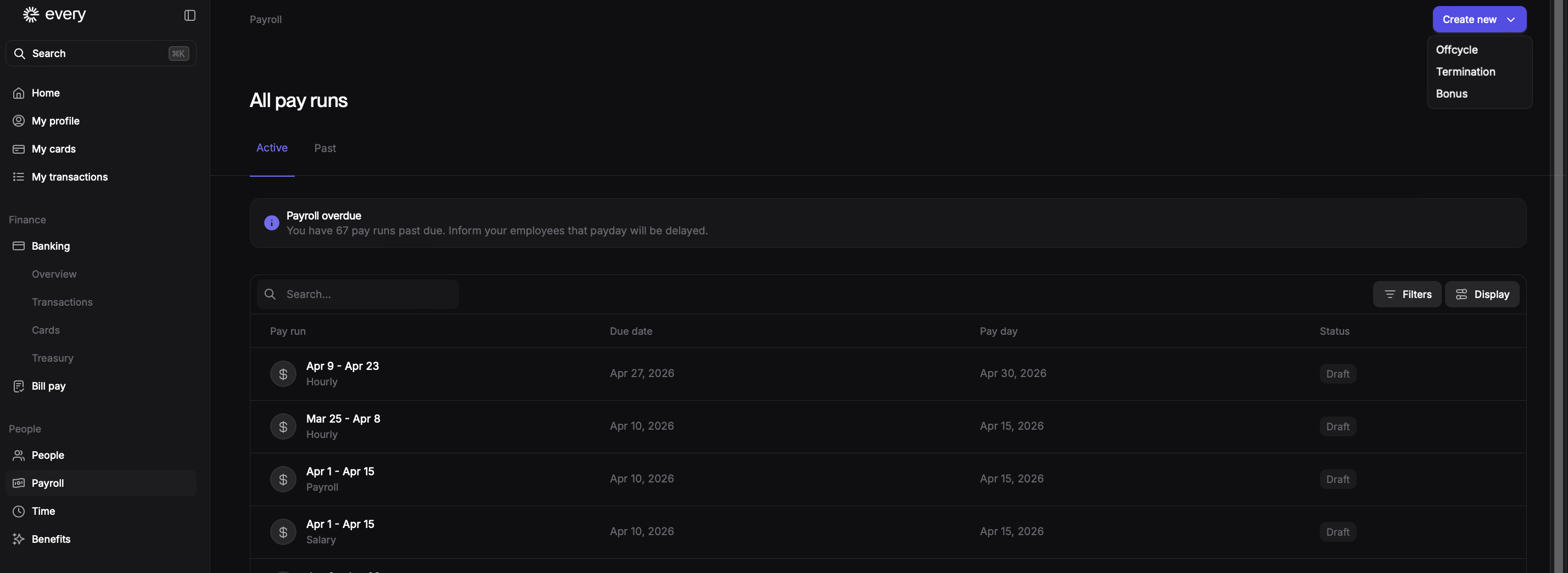
Choose Termination
Choose the Employee you are terminating from the first dropdown menu. You are only allowed to choose 1 Employee during the set up phase.
Choose their last day in the second dropdown.
Choose how you would like to schedule their last paycheck. As mentioned above it is very important that you ensure their last paycheck is received based on the laws of your state. For this reason it is highly recommended you run a manual Off-Cycle Payroll for this final payment. See Running an Off-Cycle Payroll for more information on how Off-Cycle Payrolls work.
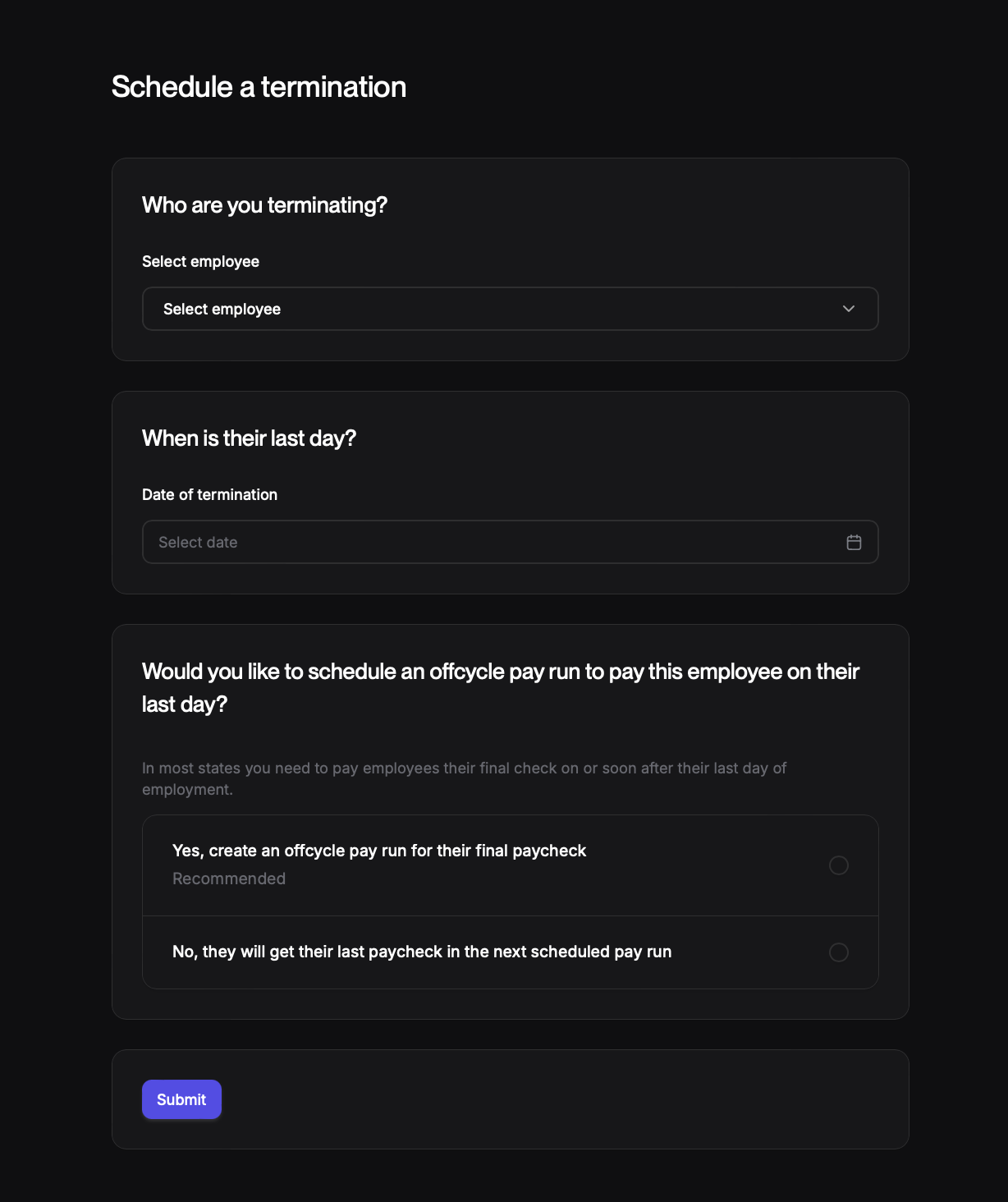
Because this is an Off-Cycle Payroll you must run it manually by the due date listed on the Run Section of Payroll. You will not be able to use Autopilot for this instance, even if you have Autopilot set up for your regular Payroll Schedules. See Running Scheduled Payroll for more information on Autopilot.
Once you have created the Termination Payroll Schedule it will appear amongst your other Payroll Schedules.
By adding this employee to a Termination Payroll Schedule they are automatically taken out of the regular payroll schedule that they were originally a part of.
Clicking into a specific Termination Payroll Schedule will allow you to preview the schedule and, if necessary, add other employees to the same Schedule.
To add more employees to the same Termination Payroll Schedule:
Click into the Termination Payroll Schedule you would like to add more Employees to
Scroll down to the Add Employees section of the page.
Choose other Employees from the drop down menu that appears.