Running Scheduled Payroll
Last updated: April 9, 2026
Establishing a Pay Schedule is one of the very first steps of successfully setting up your Every account. Using the Payroll feature of your Every account, you can customize your pay schedule to meet all your company’s needs.
Once you have set up a Payroll Schedule, you can run it one of two ways:
Manually in the Payroll Section of Every
This is how every Pay Schedule is set to run by default. Any active Pay Schedule will show up in this section, giving you the power and flexibility to run Pay Schedules on your timeline.
To manually run a Pay Schedule
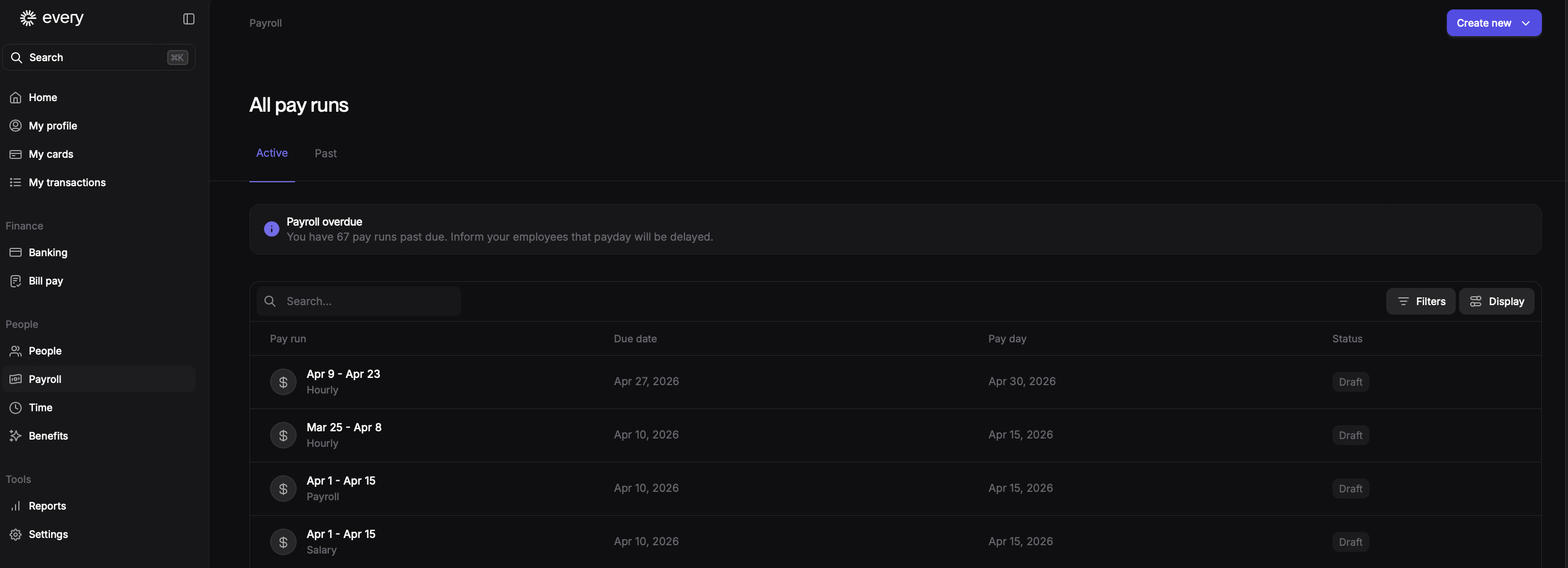
Click on Payroll in the left hand menu
In the Active Pay Runs section, search for and click on the payroll you would like to run
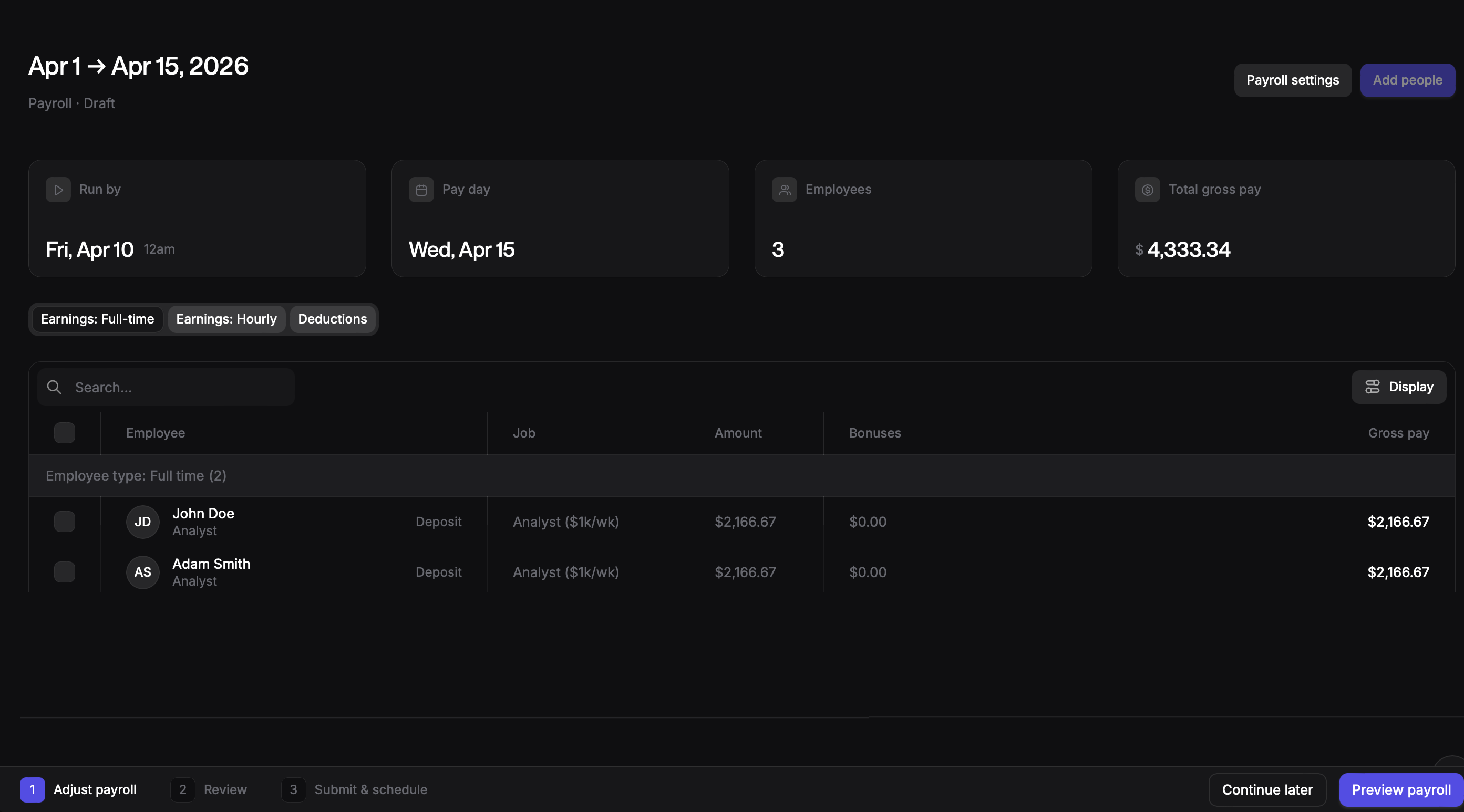
Review the details of the Payroll you have chosen to run. Once you are ready to move on click on Preview Payroll which will take you to the submission screen.
This screen will allow you one last look at the Payroll you will be running before you can click Submit.
You must run payroll manually by the due date listed to ensure that payroll is processed correctly and on time.
Automatically using Every’s Autopilot feature
Using Every you can also automate your Pay Schedules so that they run without any other input from you once the schedule is created.
To set up the Autopilot:
Click on Settings in the left hand menu
Click on Payroll in new left hand menu that populates
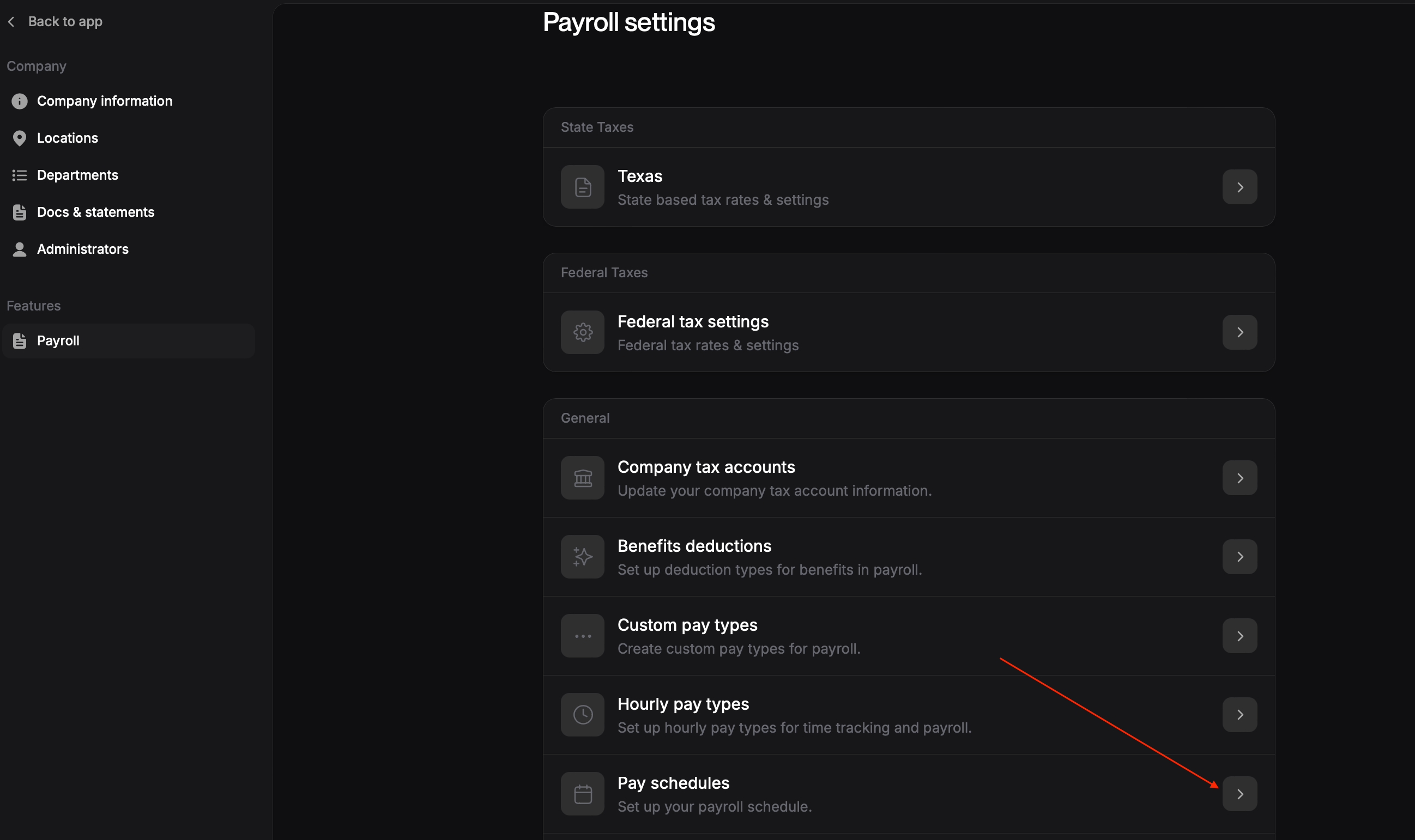
In Payroll Settings, scroll to the General section and click on Pay Schedules
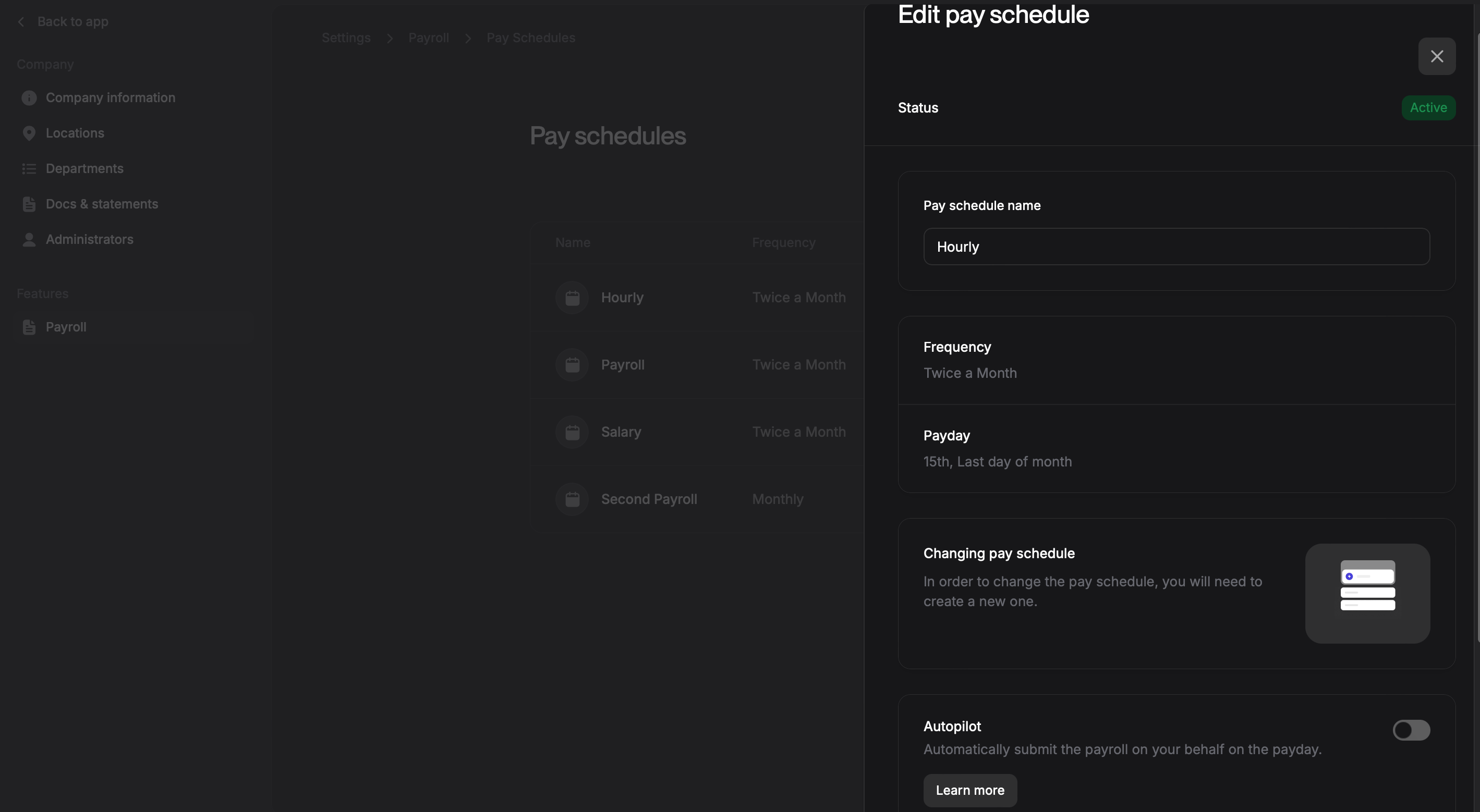
For the Pay Schedule you would like to switch to Autopilot, click on the 3 dots that appear next to it.
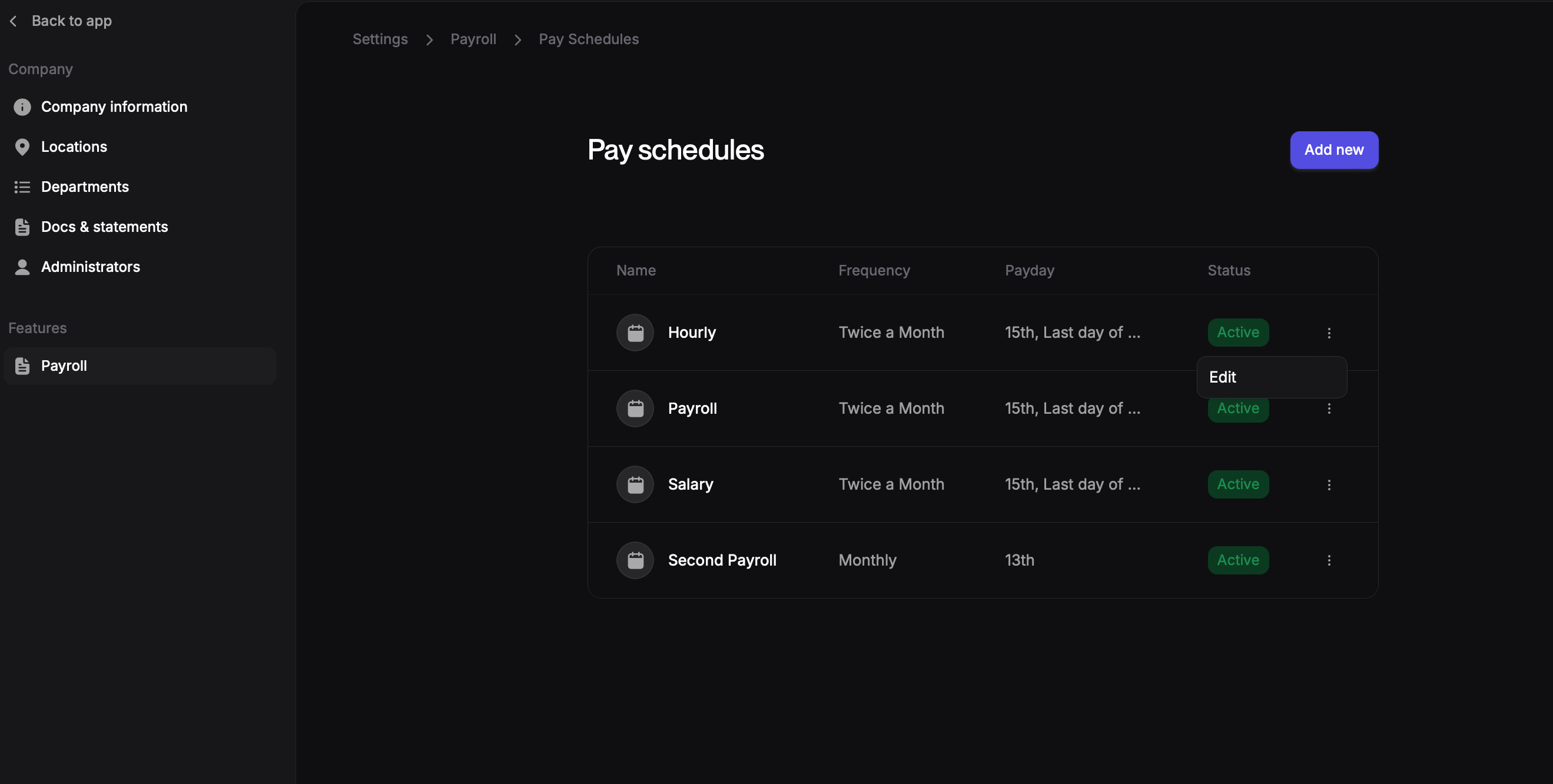
Click on Edit
If you don’t have an active Pay Schedule created make sure that you create one before returning to this step.
Turn Autopilot on by toggling on the button in the autopilot section.