How can I submit my hours into Every as an Hourly Contractor or Hourly W2 Employee?
Last updated: July 28, 2026
How to Submit Your Timesheet in Every
Submitting your timesheet on time is how you get paid for your hours. This guide walks you through logging your time and submitting it before the pay period closes.
Daily Entry
Step 1: Log in to Every
Go to app.every.io and log in with your account credentials.
Step 2: Find the timesheet reminder on your home page
Once you're logged in, your home page shows a "Things to do" section. If your timesheet is due, you'll see a "Submit your timesheets" reminder here.
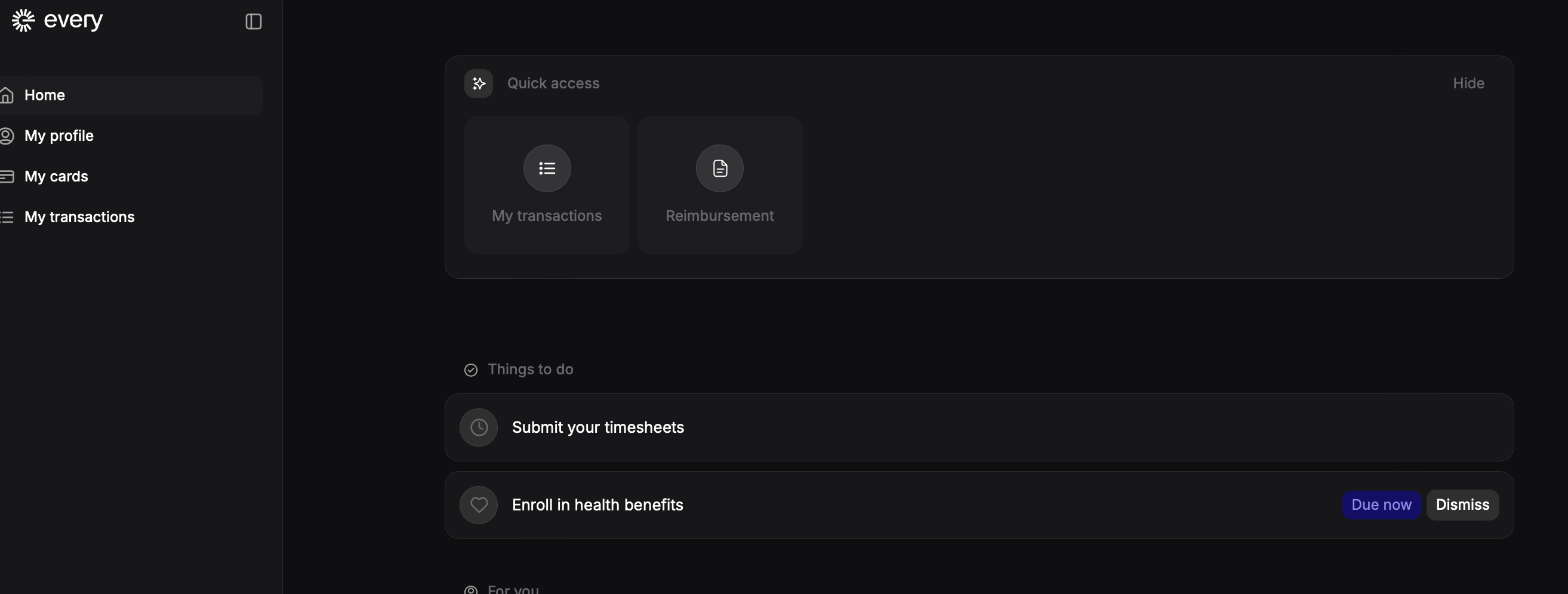
Note: If the pay period has already passed, this reminder won't be available until the next pay period begins.
Step 3: Fill out Time Sheet
Click on the "Submit your timesheets" reminder. A panel will open on the right side of your screen. If you are on daily entry your input screen will look like this.
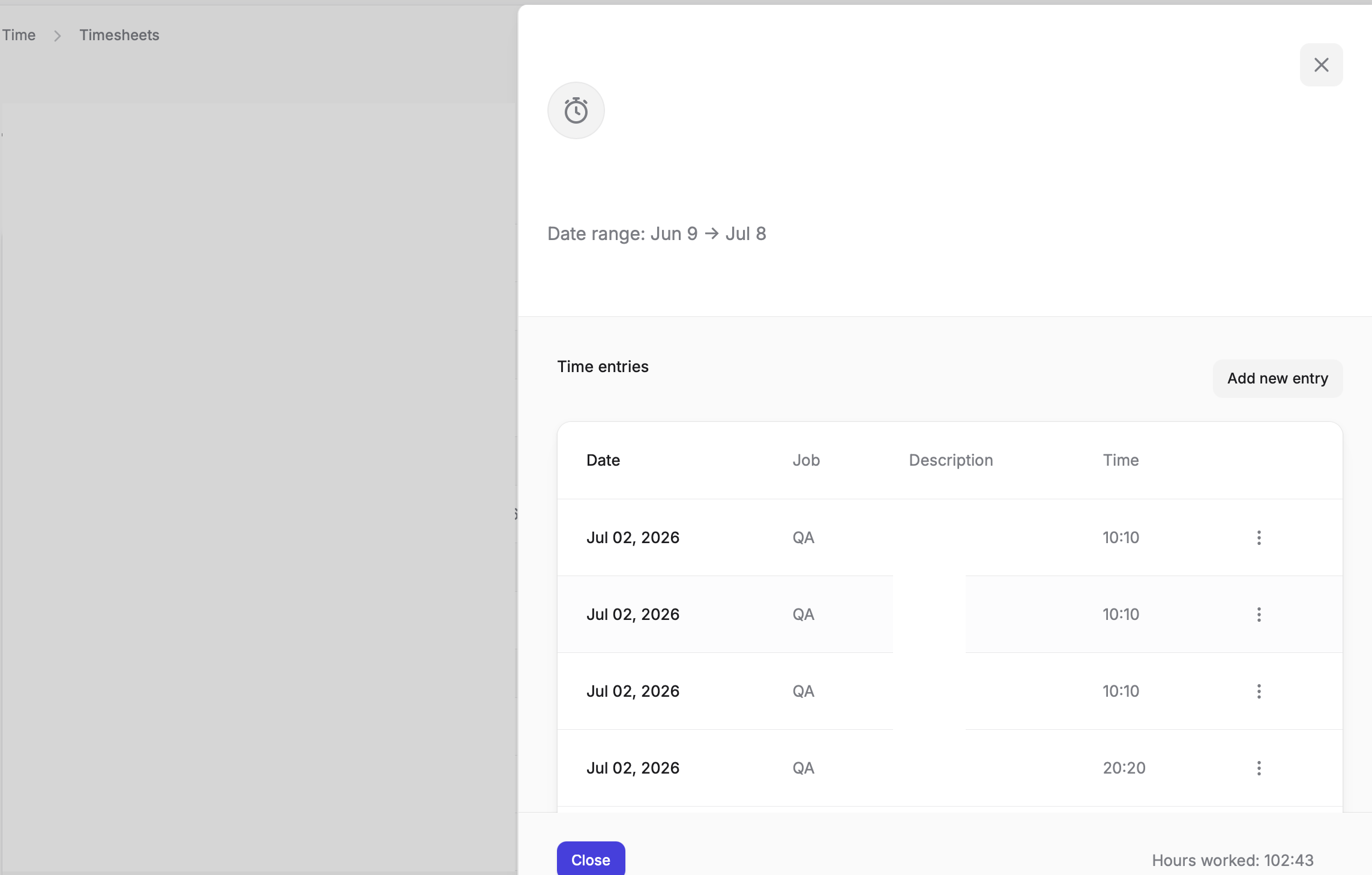
Step 4: Add a new time entry
To log new hours, click "Add new entry."
Step 5: Fill out the entry form
A form will appear where you can enter the details of your time entry:
Date: the date you worked
Select job: the job or project the time should be logged against
Hours and Minutes: how long you worked
Description: a short note about what you worked on
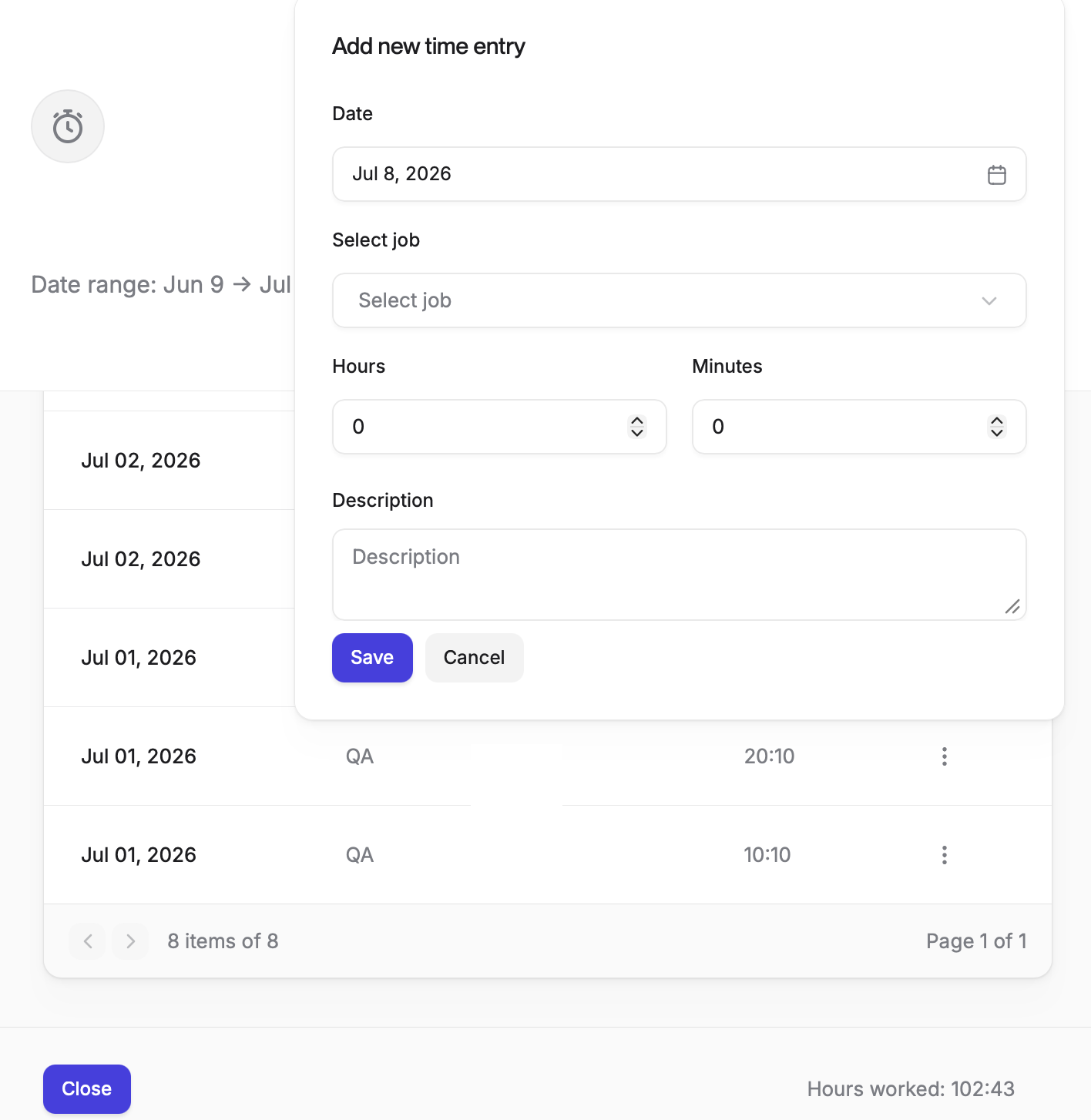
Click "Save" once you're done. This creates a new entry in your timesheet.
Repeat steps 4 and 5 for each time entry you need to add.
Step 6: Submit your timesheet
At the end of the pay period, click "Submit" on your timesheet to finalize it.
Important: You must submit your timesheet at the end of the pay period in order to be paid for your hours.
Single Entry
Step 1: Log in to Every
Go to app.every.io and log in with your account credentials.
Step 2: Find the timesheet reminder on your home page
Once you're logged in, your home page shows a "Things to do" section. If your timesheet is due, you'll see a "Submit your timesheets" reminder here.
Note: If the pay period has already passed, this reminder won't be available until the next pay period begins.
Step 3: Fill out Time Sheet
Click on the "Submit your timesheets" reminder. A panel will open on the right side of your screen.
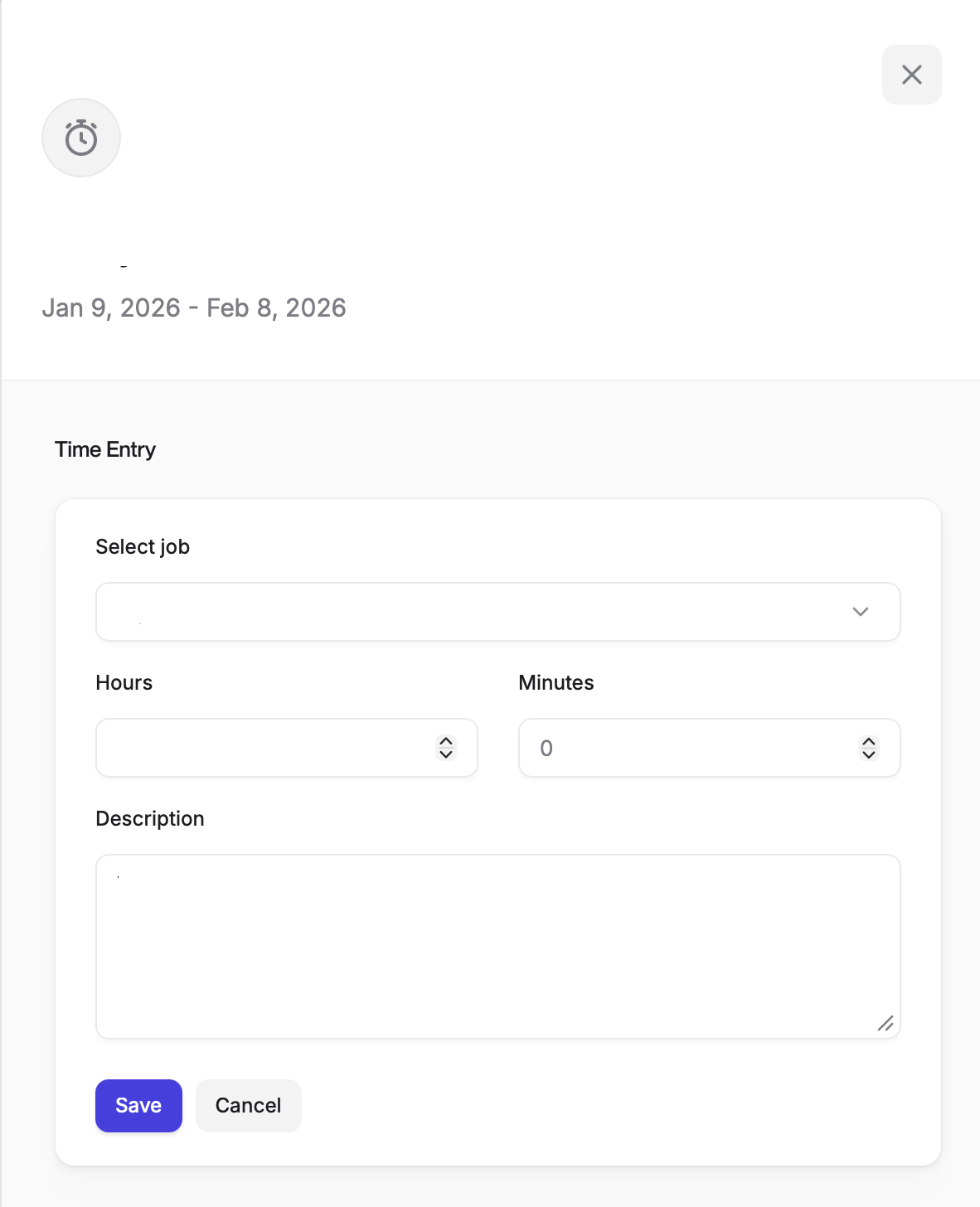
Step 4: Fill out the entry form
A form will appear where you can enter the details of your time entry:
Select job: the job or project the time should be logged against
Hours and Minutes: how long you worked
Description: a short note about what you worked on
Click "Save" once you're done.
Step 5: Submit your timesheet
At the end of the pay period, click "Submit" on your timesheet to finalize it.
Important: You must submit your timesheet at the end of the pay period in order to be paid for your hours.
Made a mistake after submitting?
If you submit your timesheet before the pay period is actually over, you can still add more hours. Adding a new entry will automatically un-submit the timesheet, so make sure to submit it again once you're finished.
Once a pay cycle has been submitted by your employer, you can no longer make any updates to your timesheet.