Hiring an International Contractor on Every.io
Last updated: December 18, 2024
This guide will walk you through the process of hiring an international contractor on Every.io.
Hiring an international contractor
Before you begin:
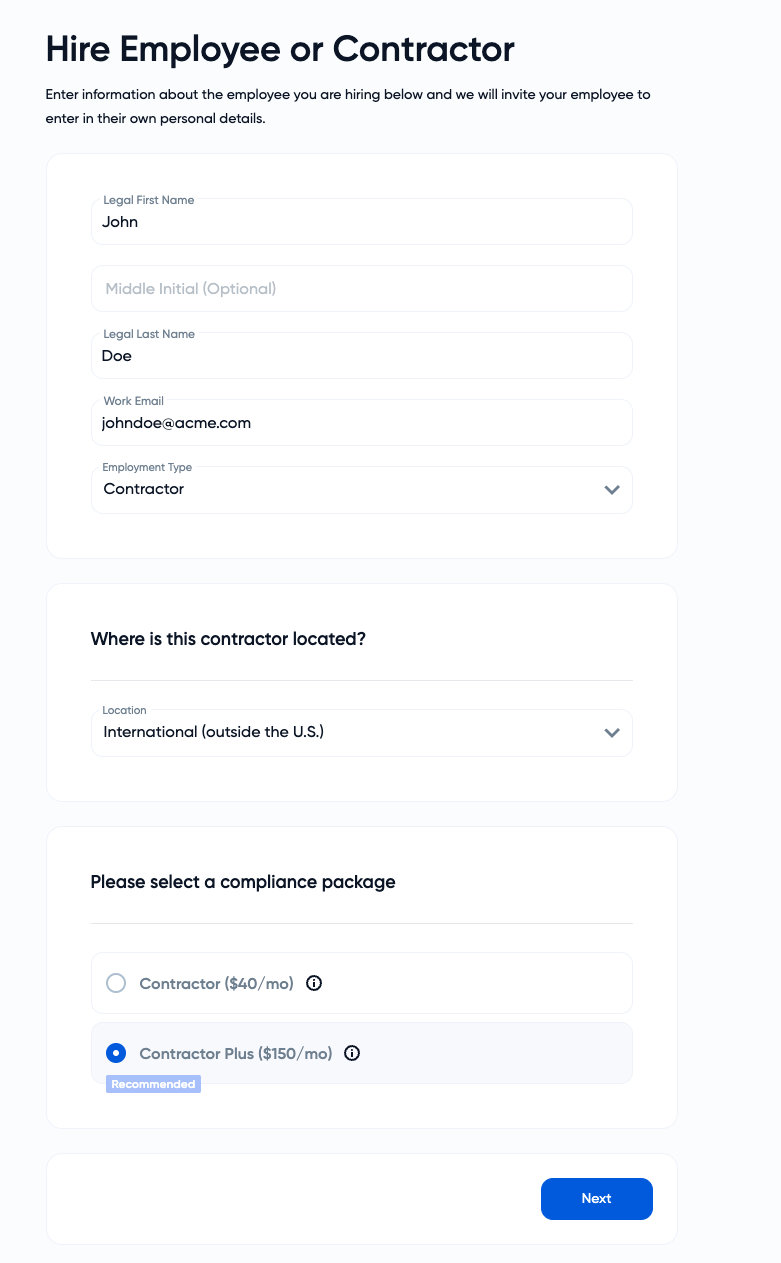
Have the contractor's legal information ready, including first and last name, middle name (optional), work email, and employment type (Contractor).
Steps for the Employer:
Contractor Setup:
Navigate to the "People" section.
Click the "Hire" button.
Enter the following information:
First Name
Last Name
Work Email
Select "Contractor" as the employment type.
Choose "International Contractor (Outside US)" from the "Where is this contractor located" dropdown menu.
Select the "Contractor Plus" option to leverage its additional features at the standard Contractor price.
Assign a manager and department (optional).
Fill in job title, compensation, and desired currency for payment.
Select the appropriate base schedule:
Hourly Worker Schedule: For contractors with tracked hours. (See separate guide for creating hourly schedules.)
Regular Base Schedule: For contractors on a fixed schedule without timesheets.
Set the start date and choose whether to send an offer letter (via Every.io or externally).
Steps for the Contractor:
The contractor will receive an email with a link to complete their onboarding. Here's what they'll do:
Company Information:
Select "International Contractor" as their type.
Provide their business name and country of incorporation.
Enter their address.
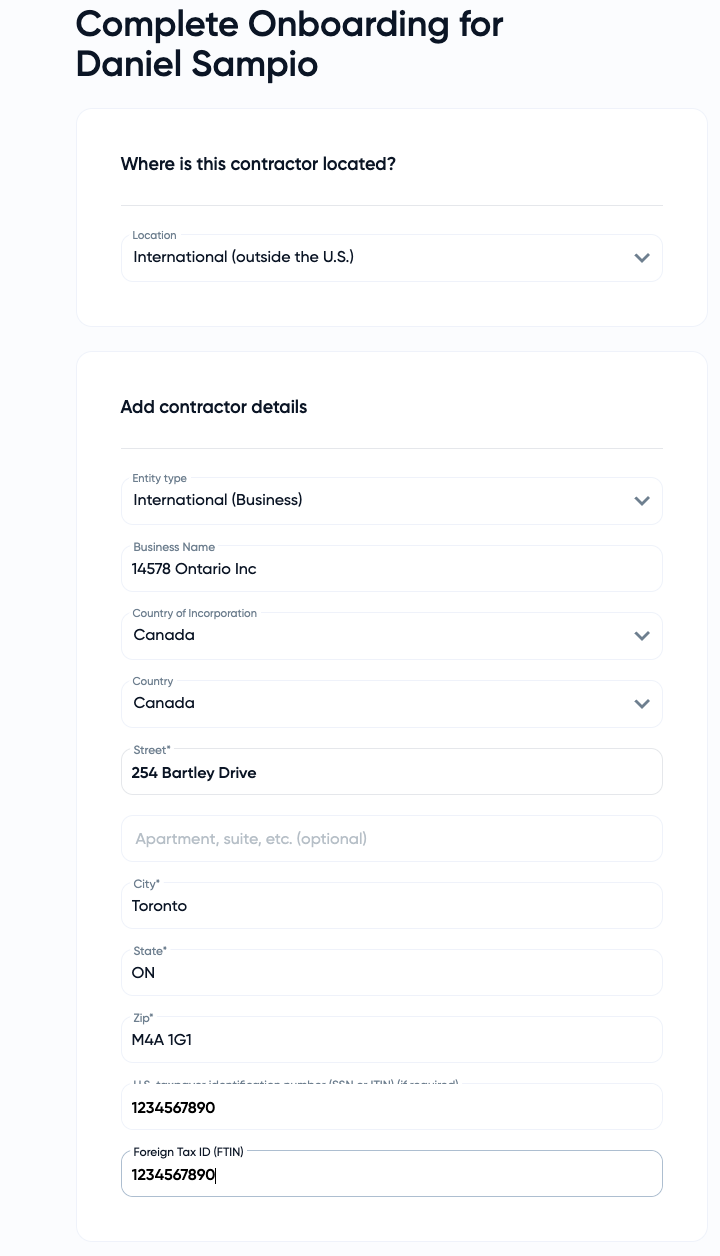
Tax Information:
Enter their passport number or a similar foreign tax ID (if no U.S. tax ID).
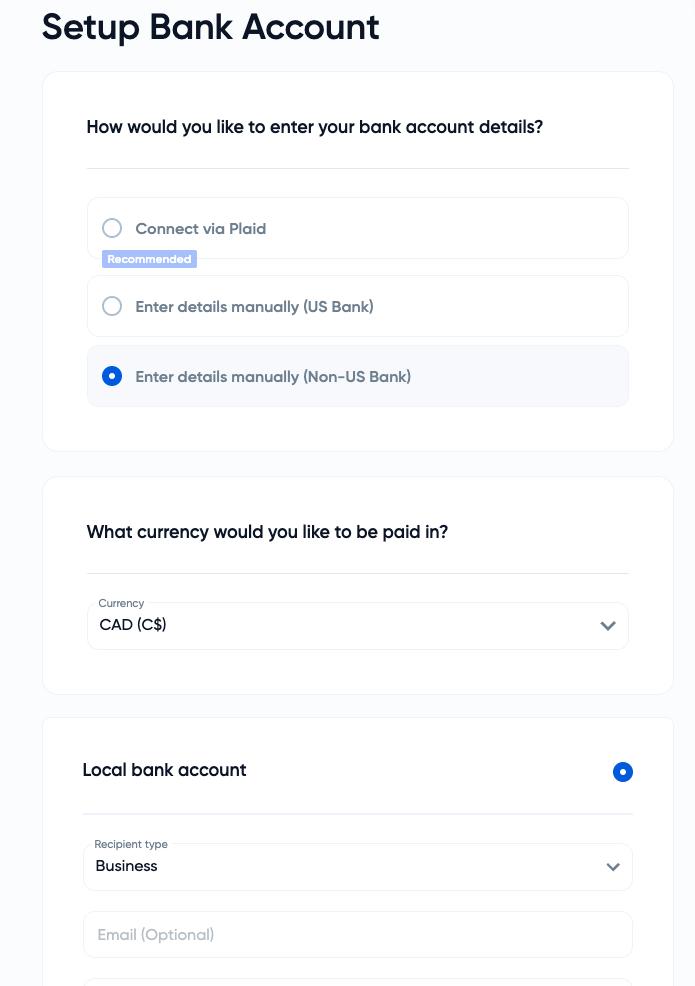
Bank Account:
Choose between U.S. or non-U.S. bank accounts.
U.S. Accounts: U.S. Accounts: Connect by Plaid or manually enter your bank account information. If you prefer to use a U.S. bank account, you can choose either of these methods.
Non-U.S. Accounts: Select desired payment currency (USD or local). Provide bank account information.
Review and Save:
Review all entered information.
Click "Purpose of Transfer" and fill in the details.
Click "Save" to complete onboarding.
Creating a New Pay Schedule (for Hourly Workers):
Go to "Settings" > "Payroll and Tax."
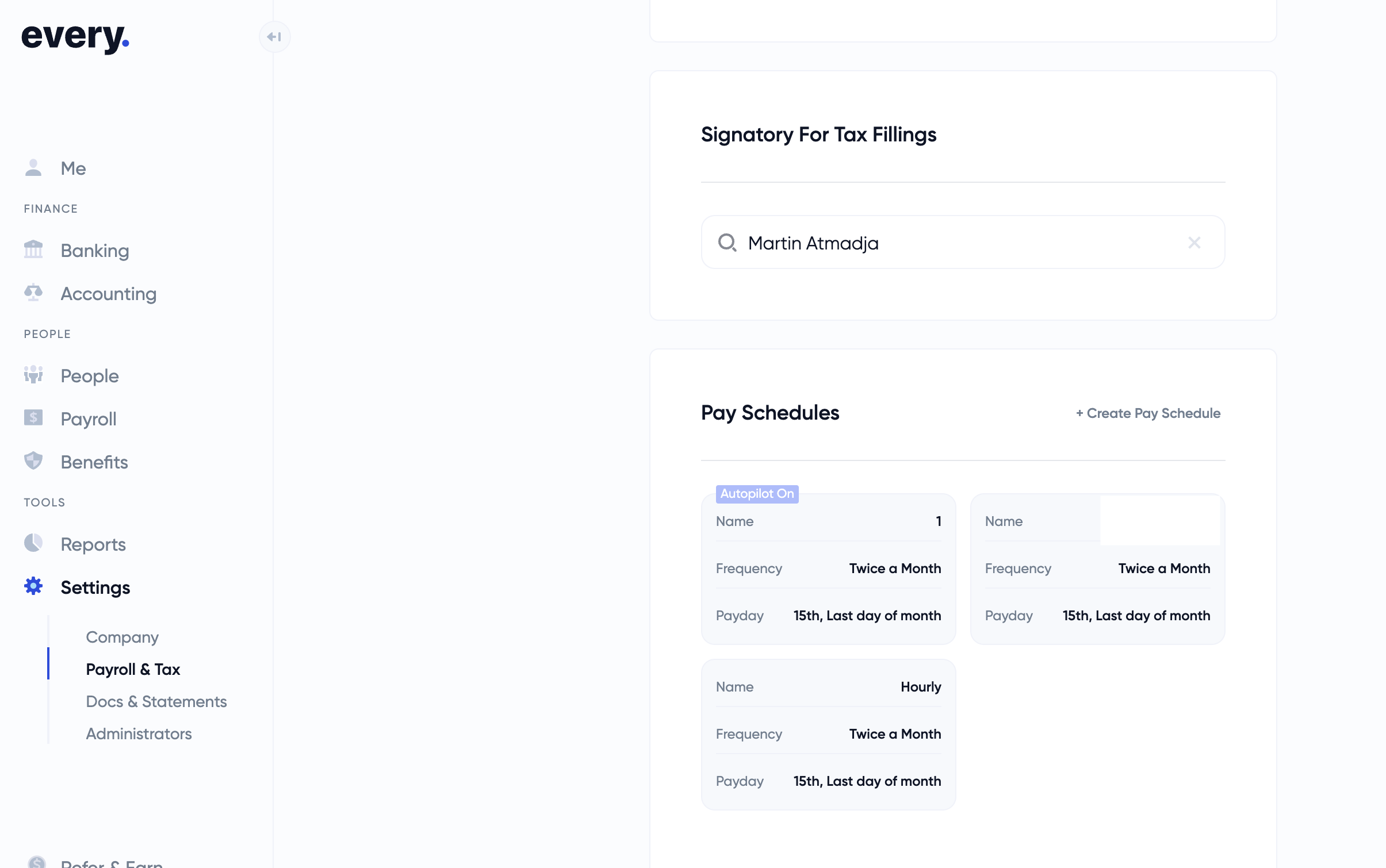
Click "Create New Pay Schedule."
Enter a name (e.g., "Hourly").
Select payment frequency (twice a month or monthly).
Choose the first pay date (e.g., December 31st, 2024).
Select pay period shift: "Hourly Schedule" (recommended for hourly employees).
Click "Submit" to create the schedule.
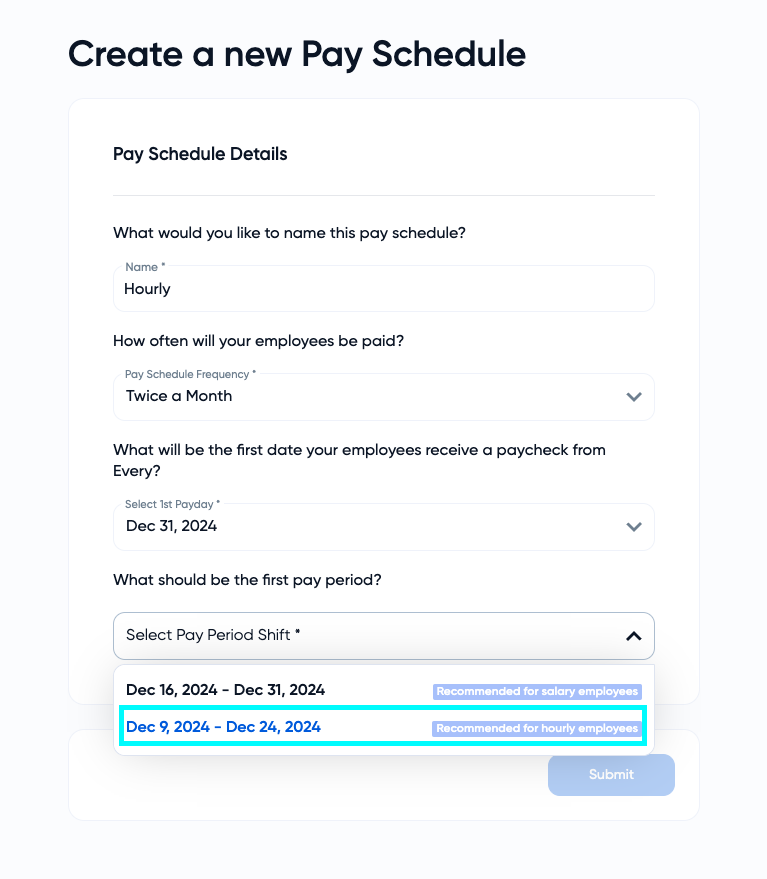
This newly created hourly Pay schedule will be available for future international or U.S. contractors who require time tracking. If you have any questions, please reach out to Every support at support@every.io for assistance with creating the pay schedule.
Taxes for international contractor
International contractors are responsible for filing and paying their own taxes in their respective countries. Every does not withhold taxes from payments made to international contractors.
Custom Offer letter for International Contractor
If you wish to send a custom offer letter to an international contractor, we recommend using every.io’s offer letter template as a starting point. You can modify this template to suit your specific needs and then send it to the contractor directly.