How to Pay an External Vendor
Last updated: April 13, 2026
Here's a step-by-step guide on how to pay an external vendor or any other recipient using every's platform:
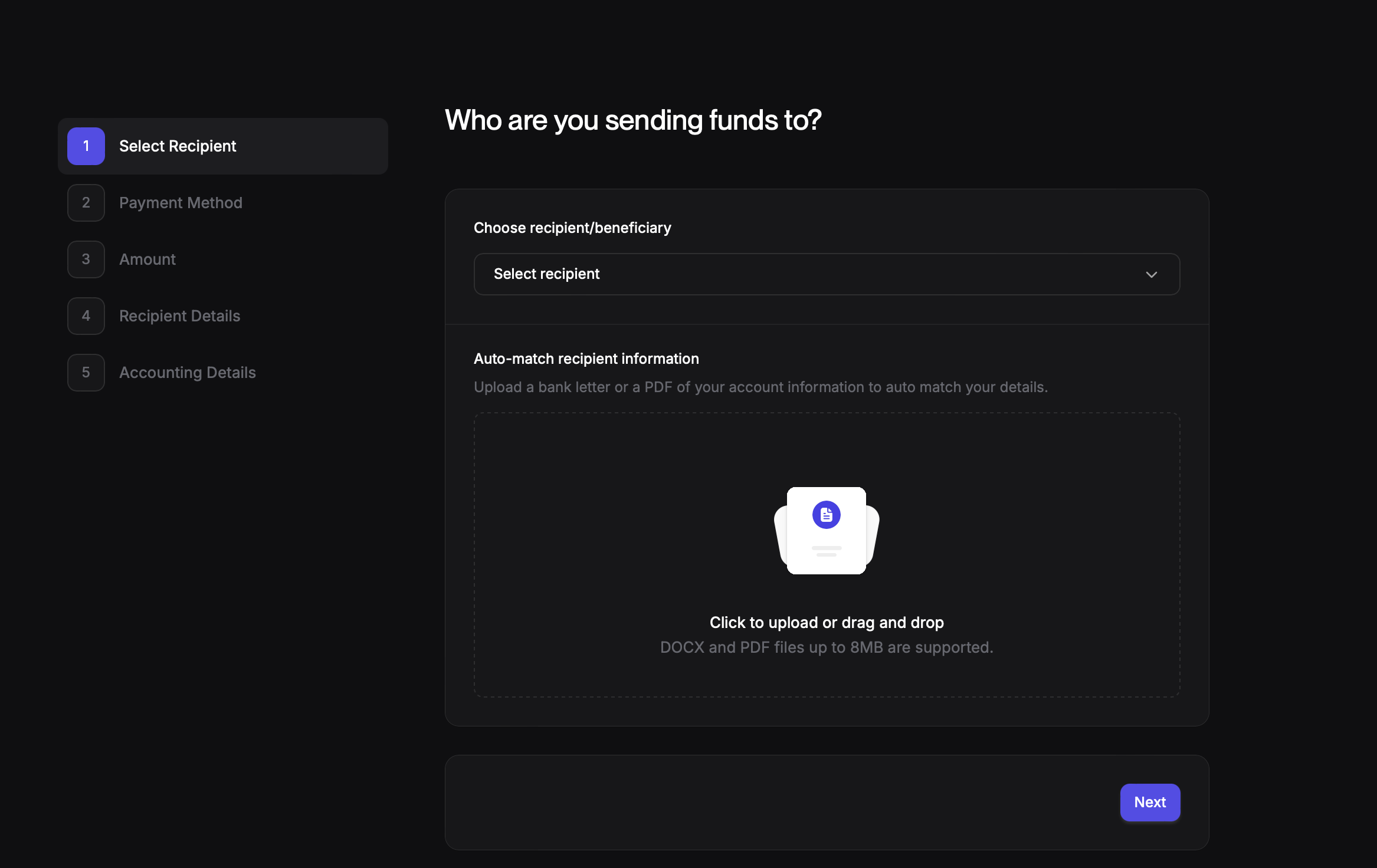
1. Access the Banking Tab:
Navigate to the "Banking" tab in your Every account.
2. Create or Select a Recipient:
Click on "Send Funds"
If the recipient is new:
Enter their name.
Click "Create Recipient" to save their information.
If the recipient already exists:
Select them from the list of existing recipients.
3. Upload the Invoice (Optional):
If required, upload the invoice associated with the payment.
Click "Next" to proceed.
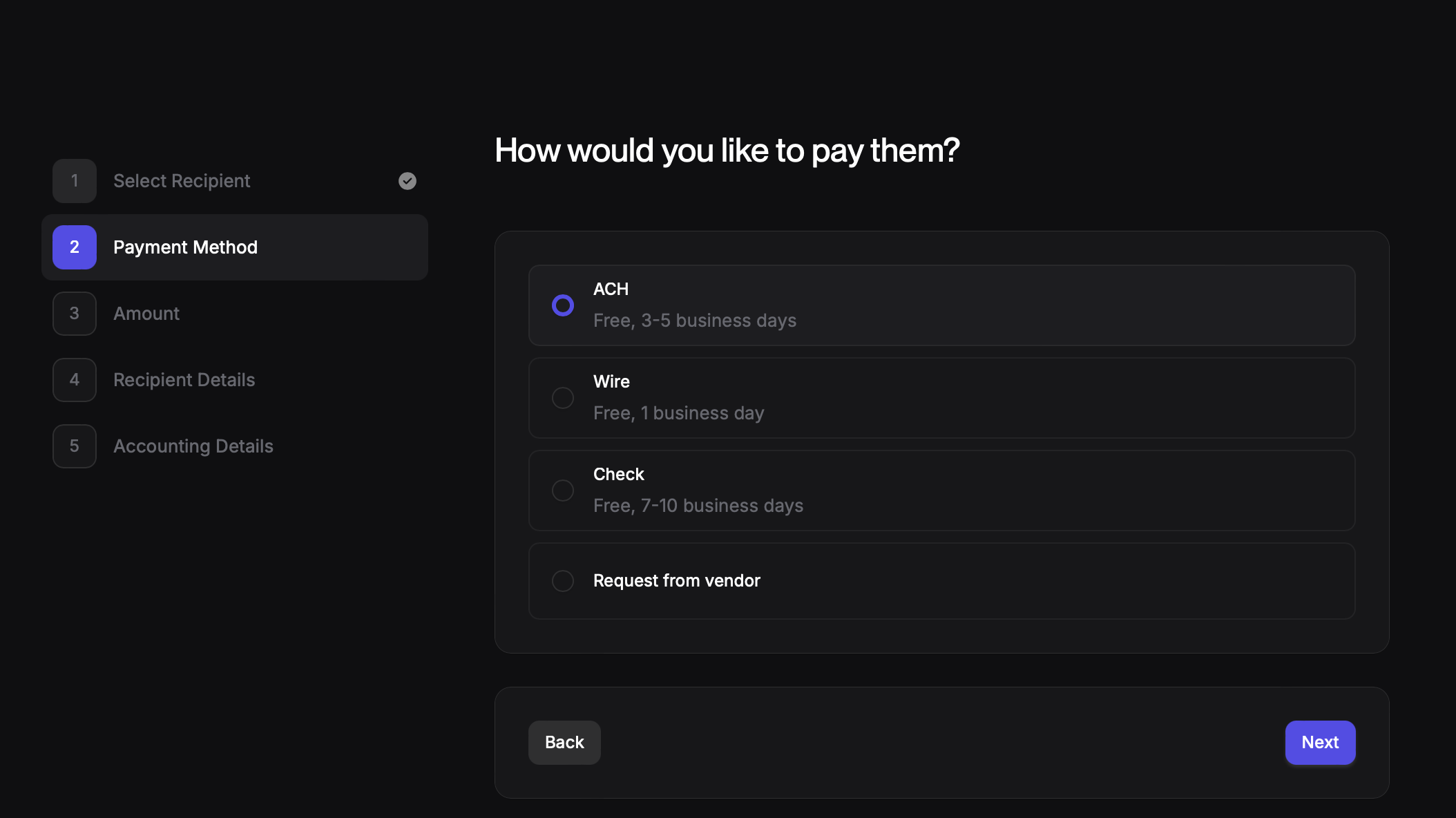
4. Choose Payment Method:
Select the preferred payment method:
ACH: Electronic transfer to a US bank account
Check: Physical check mailed to the recipient
International: Payment to international recipients (incase you have access to international payments)
Request from Vendor: Request payment information from the vendor
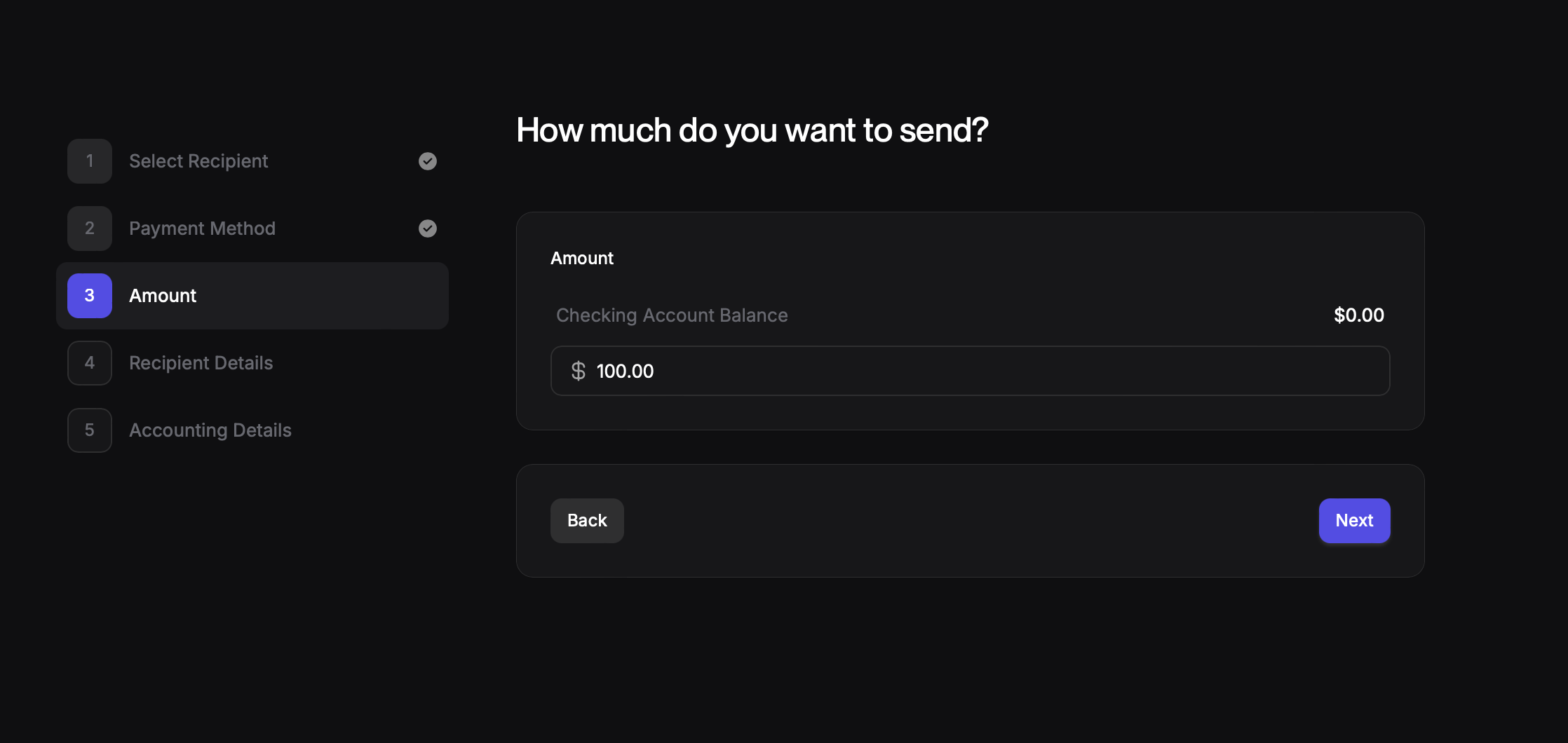
5. Enter Payment Details:
Amount: Input the payment amount.
In case of ACH Payments:
Provide the recipient's routing number and account number.
Select the account type (checking or savings).
6. Add Memo and Tax Information:
Memo: Enter a memo for the recipient.
W-9 Form:
If necessary, indicate whether you need to collect a W-9 form from the vendor for tax purposes.
This option is typically relevant for external vendors and contractors.
This is not relevant for international vendors and contractors.
For the question "Would you like to create a bill in your accounting software?"
If you're the founder or a company admin: Select "Founder".
If you're an accountant: Select "Accountant".
7. Accounting and Approval Details:
Bill Creation: Select whether to create a bill in your accounting software.
Reason for Payment: Specify the reason for the payment.
Purchase Category: Choose the appropriate category for the purchase.
Approvers: Select the necessary approvers for the payment, if applicable.
Note: Approval requirements may vary based on your role and company policies. Incase you have bookkeeper permission, you will be requested to choose an approver.
8. Review and Submit:
Carefully review the payment information.
Once you're satisfied, click "Create Payment" to finalize the transaction.