Create Off-Cycle Payrolls
Last updated: April 16, 2026
This article will guide you through the process of creating off-cycle payrolls in Every. Off-cycle payrolls are used for various reasons, such as bonuses, terminations, or other one-time payments.
Creating a Regular Off-Cycle Payroll
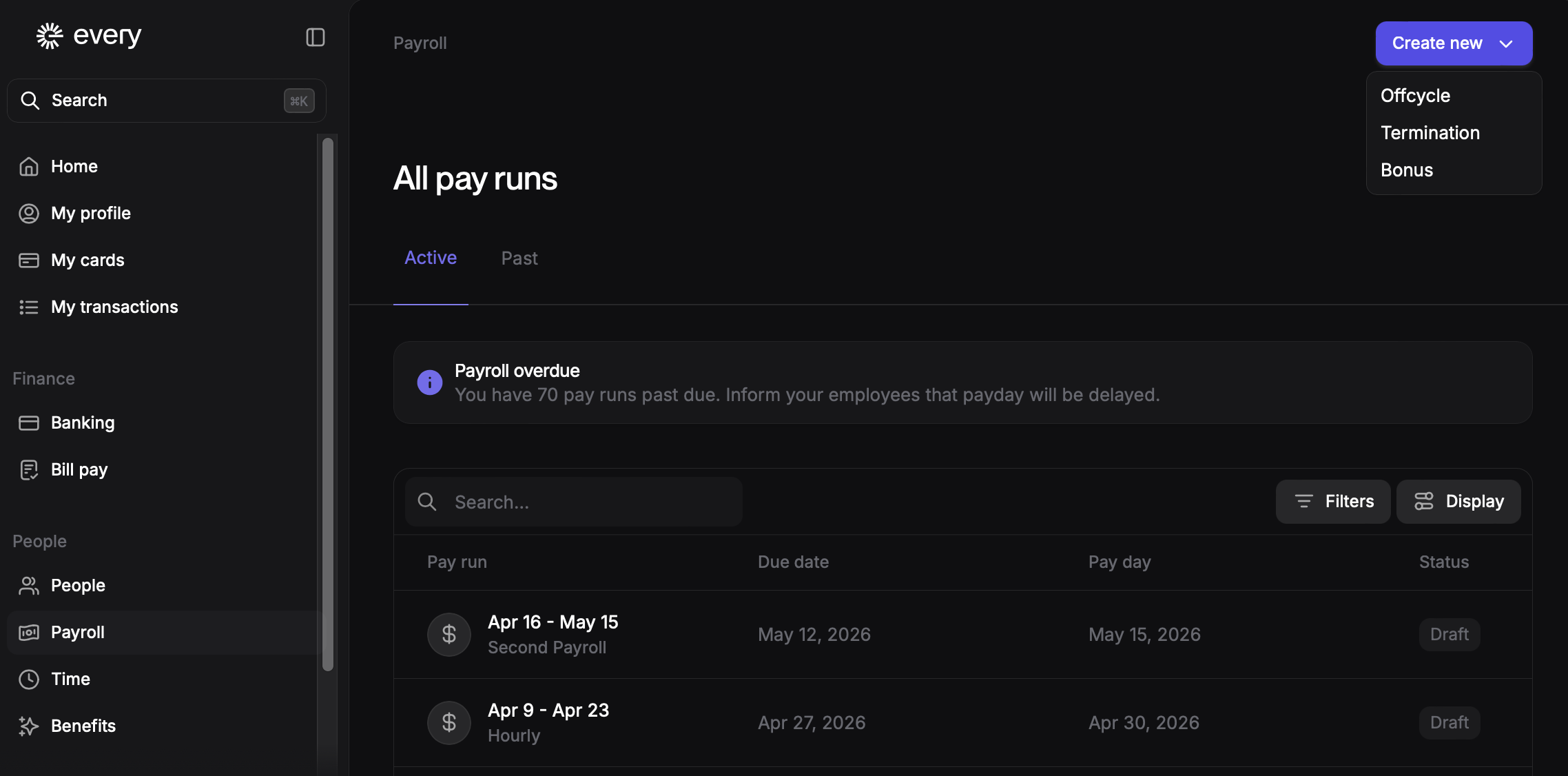
Navigate to the Payroll Tab: Go to the "Payroll" tab in your dashboard.
Select "Off-Cycle": Click on the "Off-Cycle" option by clicking on the Create New Button in the top Right hand corner.
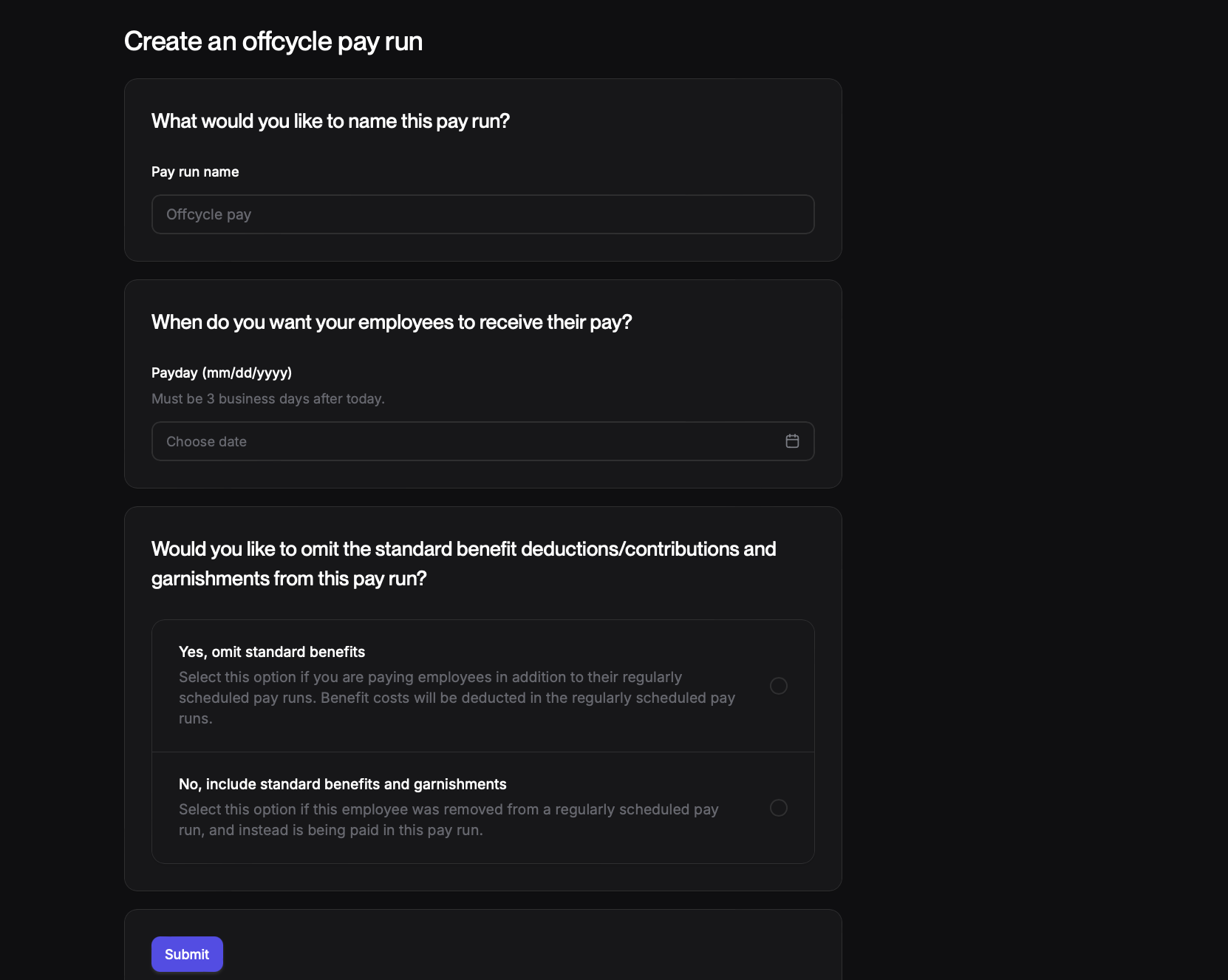
Provide Details:
Pay Run Name: Give a name to your off-cycle payroll.
Pay Date: Select the desired pay date.
Tax Options: Choose the appropriate benefit deductions/contributions and garnishments option, typically "Yes, omit standard benefit and garnishments."
Add Employees and Amounts:
Click "Add" to add employees to the off-cycle payroll.
Enter the amount to be paid to each employee.
Preview and Submit:
Click "Preview Payroll" to review the payroll details, including taxes and net pay.
Once you're satisfied, click "Submit Payroll" to finalize the off-cycle payroll.
Creating a Bonus Off-Cycle Payroll
Navigate to the Payroll Tab: Go to the "Payroll" tab in your dashboard.
Select "Bonus": Click on the "Bonus" option.
Provide Details:
Pay Run Name: Give a name to your bonus off-cycle payroll, such as "John Doe Signing Bonus."
Pay Date: Select the desired pay date for the bonus. The system will suggest the next available pay date.
Tax Options: Choose between "22% Supplemental Tax Wage" and "Regular W-4 Tax Rate."
This is the only difference between regular offcycle and the bonus offcycle.
Add Employees and Bonus Amounts:
Click "Add" to add employees to the bonus payroll.
Enter the bonus amount for each employee.
Preview and Submit:
Click "Preview Payroll" to review the payroll details, including taxes and net pay.
Once you're satisfied, click "Submit Payroll" to finalize the off-cycle payroll.
Creating a Termination Payroll
Terminate the Employee:
Go to the employee's profile and click "Make Changes."
Select "Terminate" and provide the last day of employment.
Choose the option to create an off-cycle payroll for the final paycheck.
Review and Submit:
Review the termination payroll details, including pro-rated amounts and taxes.
Click "Preview Payroll" and then "Submit Payroll" to finalize the termination payroll.
Important Note:
Before creating an off-cycle payroll, ensure that a regular payroll run has been completed.