How to Connect an External Bank Account in Every
Last updated: April 9, 2026
This article walks you through the steps to securely connect an external bank account to your Every account using Plaid. You can follow along with the screenshots attached for reference.
Step-by-Step: Connect an External Bank Account
1. Go to the Banking Homepage
Log in to your Every account and navigate to the Banking homepage.
2. Open the External Accounts Section
On the Banking homepage, scroll down to find the External Accounts section. This appears right below the Cards section.
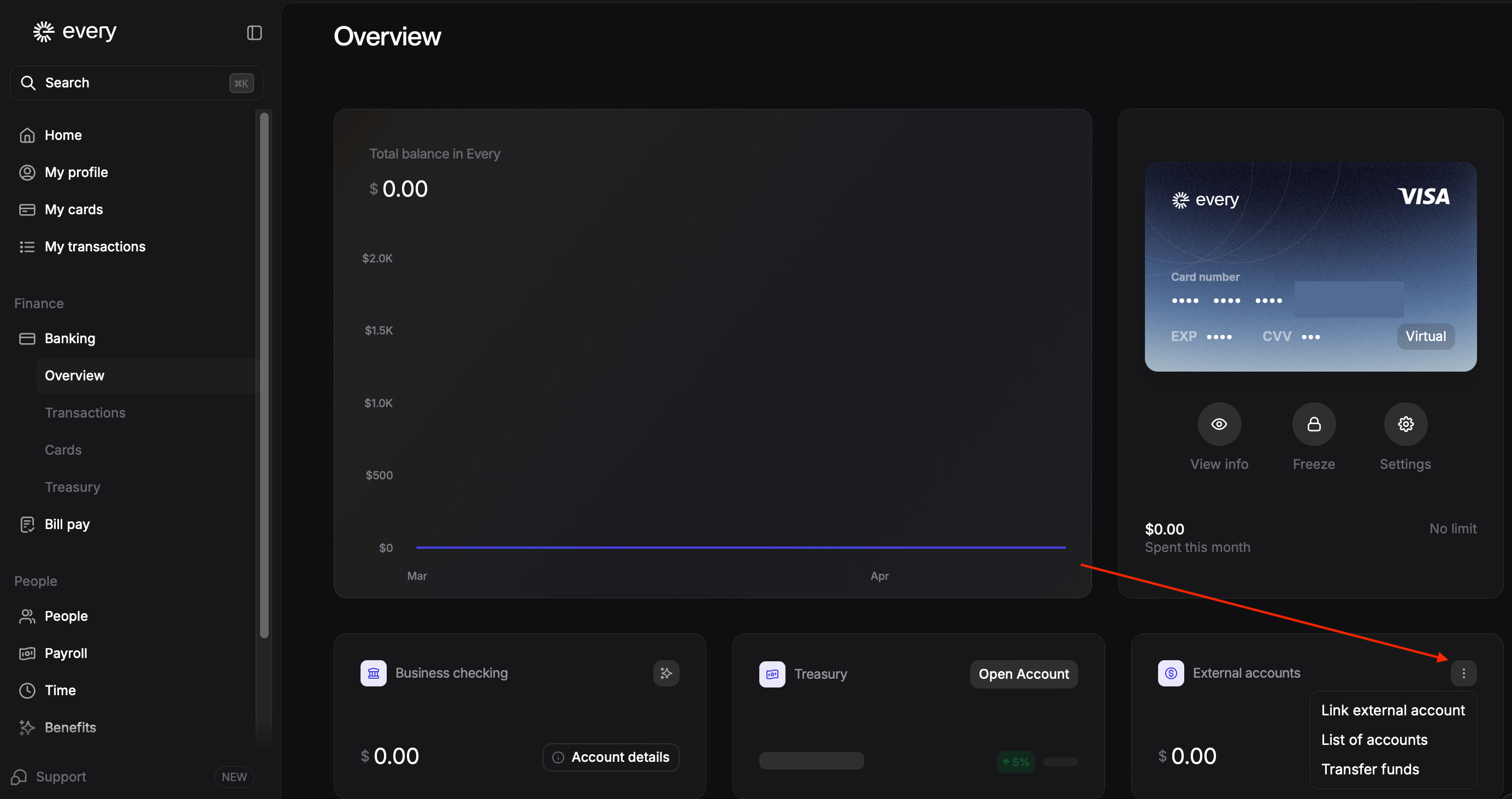
3. Click “Link an External Bank Account”
In the External Accounts section:
Click the plus (+) icon
Select Link an external bank account
This will start the bank connection process.
4. Connect via Plaid
Every uses Plaid to securely connect your bank account.
When the Plaid window opens:
Enter your phone number
Click Continue
5. Verify With One-Time Password (OTP)
You will receive a one-time password (OTP) on your phone
Enter the OTP to verify your identity
6. Select and Connect Your Bank Account
Once verified:
You’ll see a list of available bank accounts
Select the bank account you want to connect
Confirm the connection
Your external bank account will now be successfully linked to Every.
What Happens Next?
After the account is connected:
The bank account will appear under External Accounts