Adding an Admin to Your Wise Account with Transfer Approval
Last updated: December 21, 2024
Permissions:
You must be a wise account owner.
Steps:
Access Team Management:
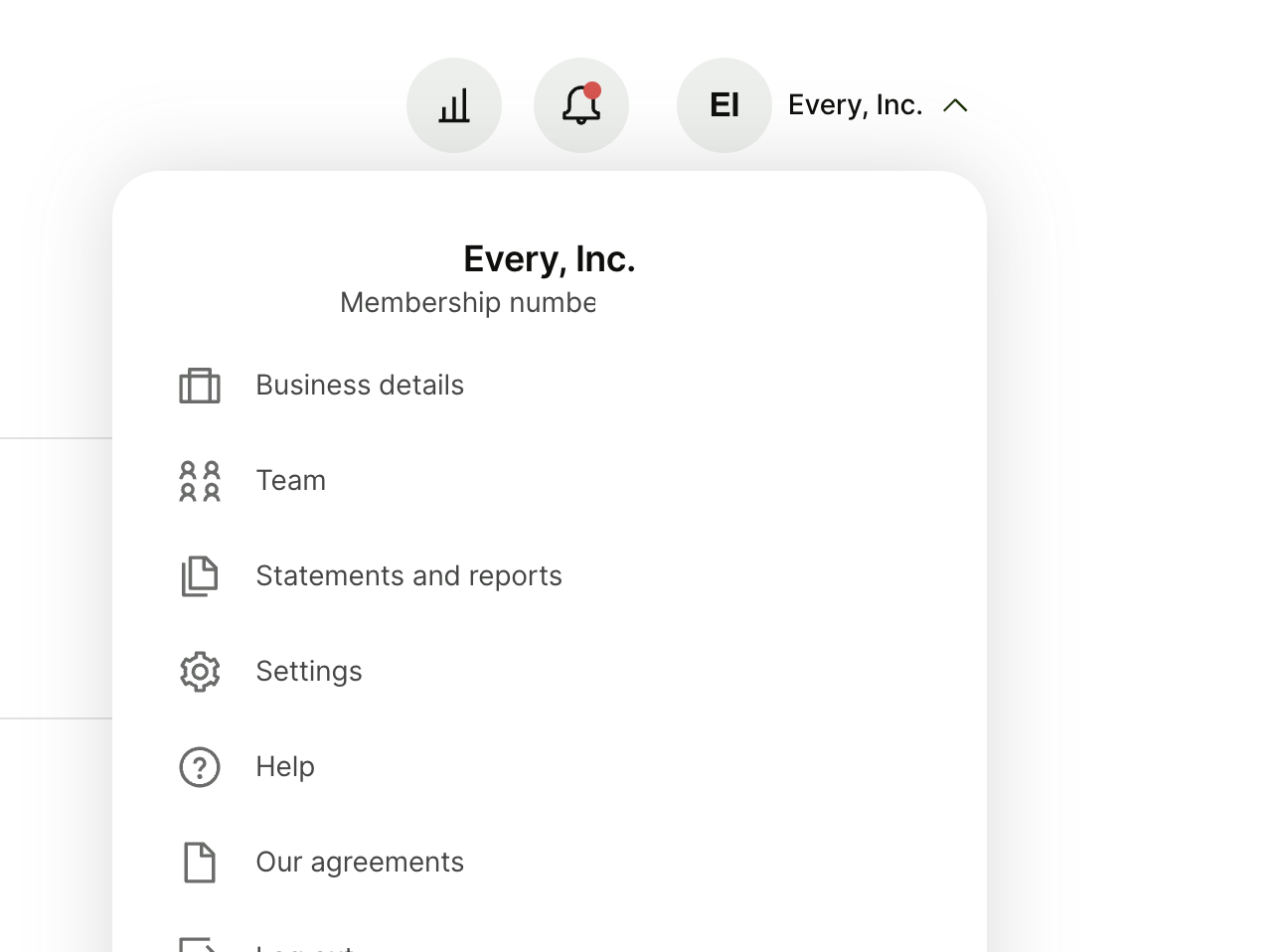
Click on your company name located in the top right corner of your Wise account.
From the dropdown menu, select "Team" (the second option).
Add a New Team Member:
Click on the button "Add team member."
Enter User Information:
In the designated field, enter the email address of the new admin. Example john@acme.com
Assign Admin Role:
In the "Role" section, select "Admin."
Set Transfer Approvals:
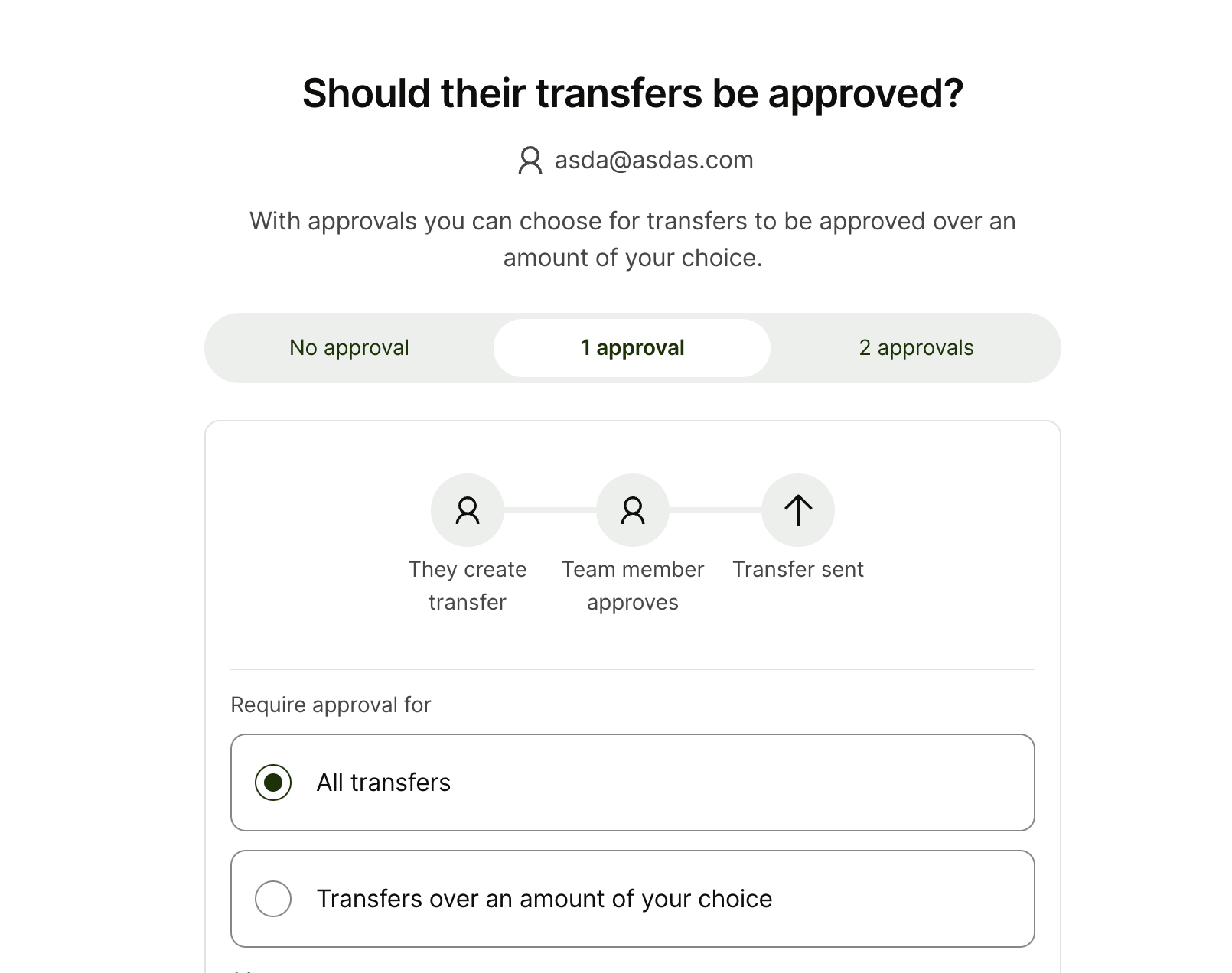
On the approvals screen, select "1 approval".
Ensure the checkbox for "All transfers" is selected.
Review and Invite:
Carefully review the entered information and assigned permissions.
Once satisfied, click the button to send the invitation to the new admin.
Additional Notes:
The new admin will receive an email invitation to join your Wise account.
Once they accept the invitation, they will be able to log in and manage your account with the designated admin permissions.
With one approval required for all transfers, any transfer initiated by any team member will require approval from an admin before proceeding.
By following these steps, you can successfully add a new admin to your Wise account and ensure that all transfers require approval for an extra layer of security.